Working with Stages
Each Kargo Stage is represented by a Kubernetes resource of type Stage.
The Stage Resource Type
Like most Kubernetes resources, a Stage is composed of a user-defined spec
field and a system-populated status field.
A Stage resource's spec field is itself composed of four main areas of
concern:
-
Variables
-
Requested Freight
-
Promotion template
-
Verification
The following sections will explore each of these as well as status in
greater detail.
Variables
The spec.vars field allows you to define variables that can be referenced
anywhere in the Stage specification that supports expressions, including the
promotion template and
verification configuration.
apiVersion: kargo.akuity.io/v1alpha1
kind: Stage
metadata:
  name: test
  namespace: kargo-demo
spec:
  vars:
    - name: gitopsRepo
      value: https://github.com/example/kargo-demo.git
    - name: targetBranch
      value: stage/test
    - name: imageRepo
      value: public.ecr.aws/nginx/nginx
  # ...
Stage-level variables are merged with promotion template-level variables, with
promotion template variables taking precedence for any conflicting names. This
allows you to define common variables at the Stage level while still being
able to override or supplement them at the promotion level as needed.
Variables defined at the Stage level can be referenced using
${{ vars.<variable-name> }} syntax throughout the Stage specification,
including in promotion templates and verification arguments.
Requested Freight
The spec.requestedFreight field is a list of freight requests. Each freight
request describes a "type" of Freight, as specified by an origin, that the
Stage's promotion process, as specified by spec.promotionTemplate, will
operate on, and the acceptable sources from which to obtain that Freight.
Those sources may include the origin itself (e.g. a Warehouse) and/or any
number of "upstream" Stage resources.
It is helpful to think of freight requests as "slots," each of which can be
filled, at any given moment, with a single piece of Freight from a specific
origin.
Warehouses are the only type of origin at present, but it is anticipated that
future versions of Kargo will introduce additional origin types. This is why
"types" of Freight are described by an origin field having kind and name
subfields instead of being described only by the name of a Warehouse.
Freight Availability
When a freight request accepts Freight directly from its origin, all new
Freight created by that origin (e.g. a Warehouse) is immediately available
for promotion to that Stage.
When a freight request accepts Freight from one or more "upstream" Stages,
Freight is considered available for promotion to that Stage only after being
verified in the upstream Stage(s). A freight request's
sources.availabilityStrategy field specifies whether Freight must be
verified in any upstream Stage or all upstream Stages before becoming
available.
Valid strategies are:
OneOf(default):Freightis available for promotion after being verified in at least one of the upstreamStages.All:Freightis available for promotion only after being verified in all upstreamStages listed in thesources.
Last, any Freight that has been explicitly approved for promotion to the
Stage is available, without requiring upstream verification.
Explicit approvals are a useful method for applying the occasional "hotfix"
without waiting for a Freight resource to traverse the entirety of a pipeline.
Auto-Promotion
When auto-promotion is
enabled for a Stage through the project's ProjectConfig, the Stage will
periodically search for available Freight according to the rules defined in
the previous section and automatically initiate a promotion when suitable
Freight is found to be available.
Auto-promotion operates independently on each of the Stage's freight requests
(the entries of spec.requestedFreight, each identified by the origin it
names). At any given moment, each freight request has at most one auto-promotion
candidate: the available Freight that the request's selection policy would
choose.
Auto-promotion being enabled through Project-level configuration is a security measure.
If it were possible to enable auto-promotion at the Stage-level, users with
the requisite permissions to update a Stage resource, but without the
permissions to promote to that same Stage could effect a promotion regardless
by enabling auto-promotion.
Keeping enablement of auto-promotion defined at the Project-level ensures that
(in practice) only a Project's administrator has the authority to enable or
disable auto-promotion for any Stage.
Which available Freight is a freight request's candidate is determined by that
request's sources.autoPromotionOptions.selectionPolicy.
Valid policies are:
-
NewestFreight: (default): The newestFreightthat's been suitably verified or approved will be auto-promoted to theStageon a continuous basis. -
MatchUpstream: TheFreightcurrently in use immediately upstream, if suitably verified or approved, will be auto-promoted to theStageon a continuous basis. This option is valid only when the freight request acceptsFreightfrom exactly one upstreamStage.
Establishing a hold: Every Freight you promote fills exactly one of the
Stage's freight requests: the one matching its origin. If the Freight you
promote is not that request's candidate — for example, if you are pinning the
Stage to an older, known-good version — Kargo establishes a hold on the
request. The hold is recorded in the Stage's status.autoPromotionHolds and
suspends auto-promotion for that freight request only; the Stage's other
freight requests, if any, are unaffected. This prevents automation from
immediately undoing your intent by re-promoting the candidate you bypassed.
For example, suppose a Stage requests Freight originating from
my-warehouse and the candidate for that request is currently freight-abc,
but you promote freight-xyz instead. Kargo records a hold for that freight
request, and auto-promotion driven by it will not resume until the hold is
lifted.
Lifting a hold: A hold is lifted when you promote exactly the Freight that
auto-promotion would otherwise have selected — the freight request's current
candidate (which may differ from its candidate at the time the hold was
established). Promoting the candidate signals that you are ready for automation
to take over again, and Kargo clears the hold.
Continuing the example above: promoting freight-abc to the Stage lifts the
hold and auto-promotion resumes from that point forward.
In both cases, this intent takes effect only if the Promotion succeeds: a
failed Promotion neither establishes nor lifts a hold. And it is only
user-initiated Promotions that carry such intent; those created by
auto-promotion itself never establish or lift holds.
A hold is only meaningful while auto-promotion is enabled, so disabling
auto-promotion for a Stage clears its holds. While auto-promotion is
disabled, the Stage remains on its current Freight regardless — nothing
auto-promotes — so no hold is needed to keep it there. If auto-promotion is
later re-enabled, it resumes from a clean slate and will promote each freight
request's current candidate; re-establish a hold by promoting the older
Freight again if you need the Stage to stay put.
The easiest way to promote the current candidate without having to identify it
yourself is to promote by origin rather than by a specific Freight name. Kargo
resolves the Freight using the selection policy of the freight request naming
that origin (independent of whether auto-promotion is enabled):
kargo promote \
  --project my-project \
  --stage test \
  --warehouse my-warehouse
Examples
In the following example, the test Stage requests Freight that has
originated from the my-warehouse Warehouse and indicates that it will accept
new Freight directly from that origin. If auto-promotion has been enabled
(at the Project-level), the newest Freight will be auto-promoted to this
Stage on a continuous basis:
apiVersion: kargo.akuity.io/v1alpha1
kind: Stage
metadata:
  name: test
  namespace: kargo-demo
spec:
  requestedFreight:
  - origin:
      kind: Warehouse
      name: my-warehouse
    sources:
      direct: true
      # These are the default options and could be omitted
      autoPromotionOptions:
        selectionPolicy: NewestFreight
  # ...
# ...
In this example, the qa Stage requests Freight that has originated from
the my-warehouse Warehouse, and indicates that it will accept such Freight
only after it has been verified in the test Stage. It additionally
specifies that (if enabled at the Project-level), Freight currently in use by
the test Stage, if suitably verified or approved, will continuously be
auto-promoted:
apiVersion: kargo.akuity.io/v1alpha1
kind: Stage
metadata:
  name: qa
  namespace: kargo-demo
spec:
  requestedFreight:
  - origin:
      kind: Warehouse
      name: my-warehouse
    sources:
      stages:
      - test
      autoPromotionOptions:
        selectionPolicy: MatchUpstream
  # ...
In this example, the uat Stage requests Freight that has originated from
the my-warehouse Warehouse, and indicates that it will accept such Freight
only after it has been verified in the test Stage:
apiVersion: kargo.akuity.io/v1alpha1
kind: Stage
metadata:
  name: uat
  namespace: kargo-demo
spec:
  requestedFreight:
  - origin:
      kind: Warehouse
      name: my-warehouse
    sources:
      stages:
      - test
  # ...
In the next example, the prod Stage requests Freight that has originated
from the my-warehouse Warehouse, and indicates that it will accept such
Freight only after it has been verified in both the qa and uat
Stages:
apiVersion: kargo.akuity.io/v1alpha1
kind: Stage
metadata:
   name: prod
   namespace: kargo-demo
spec:
  requestedFreight:
  - origin:
      kind: Warehouse
      name: my-warehouse
    sources:
      availabilityStrategy: All
      stages:
      - qa
      - uat
  # ...
Stages may also request Freight from multiple sources. The following example
illustrates a Stage that requests Freight from both a microservice-a and
microservice-b Warehouse:
apiVersion: kargo.akuity.io/v1alpha1
kind: Stage
metadata:
  name: test
  namespace: kargo-demo
spec:
  requestedFreight:
  - origin:
      kind: Warehouse
      name: microservice-a
    sources:
      direct: true
  - origin:
      kind: Warehouse
      name: microservice-b
    sources:
      direct: true
  # ...
By requesting Freight from multiple sources, a Stage can effectively
participate in multiple pipelines that may each deliver different collections
of artifacts independently of the others.
This is advanced configuration. If you're very new to Kargo
and requesting Freight from multiple origins, you probably
didn't mean to.
Promotion Templates
The spec.promotionTemplate field is used to describe how to transition
Freight into the Stage. The spec.promotionTemplate.steps field describes
the discrete steps of a promotion process in detail.
In the following, very common example, the promotionTemplate describes steps
to:
-
Clone a Git repository containing Kubernetes manifests and Kustomize configuration, checking out two different branches to two different directories.
-
Clears the contents of one working tree, with intentions to fully replace its contents.
-
Runs the equivalent of
kustomize edit set imageto update akustomization.yamlfile with a reference to an updatedpublic.ecr.aws/nginx/nginxcontainer image. -
Renders the updated manifests using the equivalent of
kustomize build. -
Commits the updated manifests and pushes them to the
stage/testof the remote repository. -
Forces Argo CD to sync the
kargo-demo-testapplication to the latest commit of thestage/testbranch.
promotionTemplate:
  spec:
    vars:
    - name: gitopsRepo
      value: https://github.com/example/repo.git
    - name: imageRepo
      value: public.ecr.aws/nginx/nginx
    - name: srcPath
      value: ./src
    - name: outPath
      value: ./out
    - name: targetBranch
      value: stage/${{ ctx.stage }}
    steps:
    - uses: git-clone
      config:
        repoURL: ${{ vars.gitopsRepo }}
        checkout:
        - branch: main
          path: ${{ vars.srcPath }}
        - branch: stage/${{ ctx.stage }}
          create: true
          path: ${{ vars.outPath }}
    - uses: git-clear
      config:
        path: ${{ vars.outPath }}
    - uses: kustomize-set-image
      as: update-image
      config:
        path: ${{ vars.srcPath }}/base
        images:
        - image: ${{ vars.imageRepo }}
    - uses: kustomize-build
      config:
        path: ${{ vars.srcPath }}/stages/${{ ctx.stage }}
        outPath: ${{ vars.outPath }}/manifests.yaml
    - uses: git-commit
      as: commit
      config:
        path: ${{ vars.outPath }}
        message: ${{ outputs['update-image'].commitMessage }}
    - uses: git-push
      config:
        path: ${{ vars.outPath }}
        branch: ${{ vars.targetBranch }}
    - uses: argocd-update
      config:
        apps:
        - name: kargo-demo-${{ ctx.stage }}
          sources:
          - repoURL: ${{ vars.gitopsRepo }}
            desiredRevision: ${{ outputs.commit.commit }}
For complete documentation of all Kargo's built-in promotion steps, refer to the Promotion Steps Reference.
Verification
The spec.verification field is used to describe optional verification
processes that should be executed after a Promotion has successfully deployed
Freight to a Stage, and if applicable, after the Stage has reached a
healthy state. The following example depicts a Stage resource that references
an AnalysisTemplate named integration-test to validate the dev Stage after
any successful promotion:
apiVersion: kargo.akuity.io/v1alpha1
kind: Stage
metadata:
  name: dev
  namespace: guestbook
spec:
  # ...
  verification:
    analysisTemplates:
    - name: integration-test
For complete documentation of how to perform verification, refer to the Verification Guide.
Status
The status field of a Stage resource records:
-
Conditions containing the last observations of the
Stage's current state. -
The current phase of the
Stage's lifecycle (distilled from the conditions). -
Details about the last
Promotionand any in-progressPromotion. -
History of
Freightthat has been deployed to theStage(from most to least recent) along with the results of any associated verification processes. -
The health status of related Argo CD
Applicationresources.
For example:
status:
  freightHistory:
  - id: 101bca5b0e18ca7913978a1da956308d2544f741
    items:
      Warehouse/my-warehouse:
        commits:
        - healthCheckCommit: 111eaf55aa41f21bb9bb707ba1baa748b83ec51e
          id: 961cfaedbc53aacdb65110028839a2c1c281290d
          repoURL: https://github.com/example/kargo-demo.git
        images:
        - digest: sha256:b2487a28589657b318e0d63110056e11564e73b9fd3ec4c4afba5542f9d07d46
          repoURL: public.ecr.aws/nginx/nginx
          tag: 1.27.0
        name: 666209fd9755a1e48bec6b27f5f447747410dd9e
        origin:
          kind: Warehouse
          name: my-warehouse
    verificationHistory:
    - analysisRun:
        name: test.01j2w7aknhf3j7jteyqs72hnbg.101bca5
        namespace: kargo-demo
        phase: Successful
      finishTime: "2024-07-15T22:13:57Z"
      id: 5535a484-bbd0-4f12-8cf4-be2c8e0041c9
      phase: Successful
      startTime: "2024-07-15T22:13:34Z"
  health:
    argoCDApps:
    - healthStatus:
        status: Healthy
      name: kargo-demo-test
      namespace: argocd
      syncStatus:
        revision: 111eaf55aa41f21bb9bb707ba1baa748b83ec51e
        status: Synced
    status: Healthy
  lastPromotion:
    finishedAt: "2024-07-15T22:13:25Z"
    freight:
      commits:
      - healthCheckCommit: 111eaf55aa41f21bb9bb707ba1baa748b83ec51e
        id: 961cfaedbc53aacdb65110028839a2c1c281290d
        repoURL: https://github.com/example/kargo-demo.git
      name: 666209fd9755a1e48bec6b27f5f447747410dd9e
      origin:
        kind: Warehouse
        name: kargo-demo
    name: test.01j2w7a15cxjjgejresfyw6ysp.666209f
    status:
      finishedAt: "2024-07-15T22:13:25Z"
      freight:
        commits:
        - healthCheckCommit: 111eaf55aa41f21bb9bb707ba1baa748b83ec51e
          id: 961cfaedbc53aacdb65110028839a2c1c281290d
          repoURL: https://github.com/example/kargo-demo.git
        name: 666209fd9755a1e48bec6b27f5f447747410dd9e
        origin:
          kind: Warehouse
          name: kargo-demo
      freightCollection:
        id: 101bca5b0e18ca7913978a1da956308d2544f741
        items:
          Warehouse/kargo-demo:
            commits:
            - healthCheckCommit: 111eaf55aa41f21bb9bb707ba1baa748b83ec51e
              id: 961cfaedbc53aacdb65110028839a2c1c281290d
              repoURL: https://github.com/example/kargo-demo.git
            name: 666209fd9755a1e48bec6b27f5f447747410dd9e
            origin:
              kind: Warehouse
              name: kargo-demo
        verificationHistory:
        - analysisRun:
            name: test.01j2w7aknhf3j7jteyqs72hnbg.101bca5
            namespace: kargo-demo
            phase: ""
          id: 5535a484-bbd0-4f12-8cf4-be2c8e0041c9
          phase: Pending
          startTime: "2024-07-15T22:13:34Z"
      phase: Succeeded
  observedGeneration: 1
  phase: Steady
Interacting with Stages
Kargo provides tools to manage Stages using either its UI or CLI. This section explains how to handle Stages effectively through both interfaces.
Users with credentials for and sufficient permissions within the Kargo control plane's Kubernetes cluster can also manage Stage resources using kubectl.
Creating a Stage
- Using the UI
- Using the CLI
-
In the
Projectview, click Create in the upper right corner of the pipeline section to open a dropdown, then select Stage: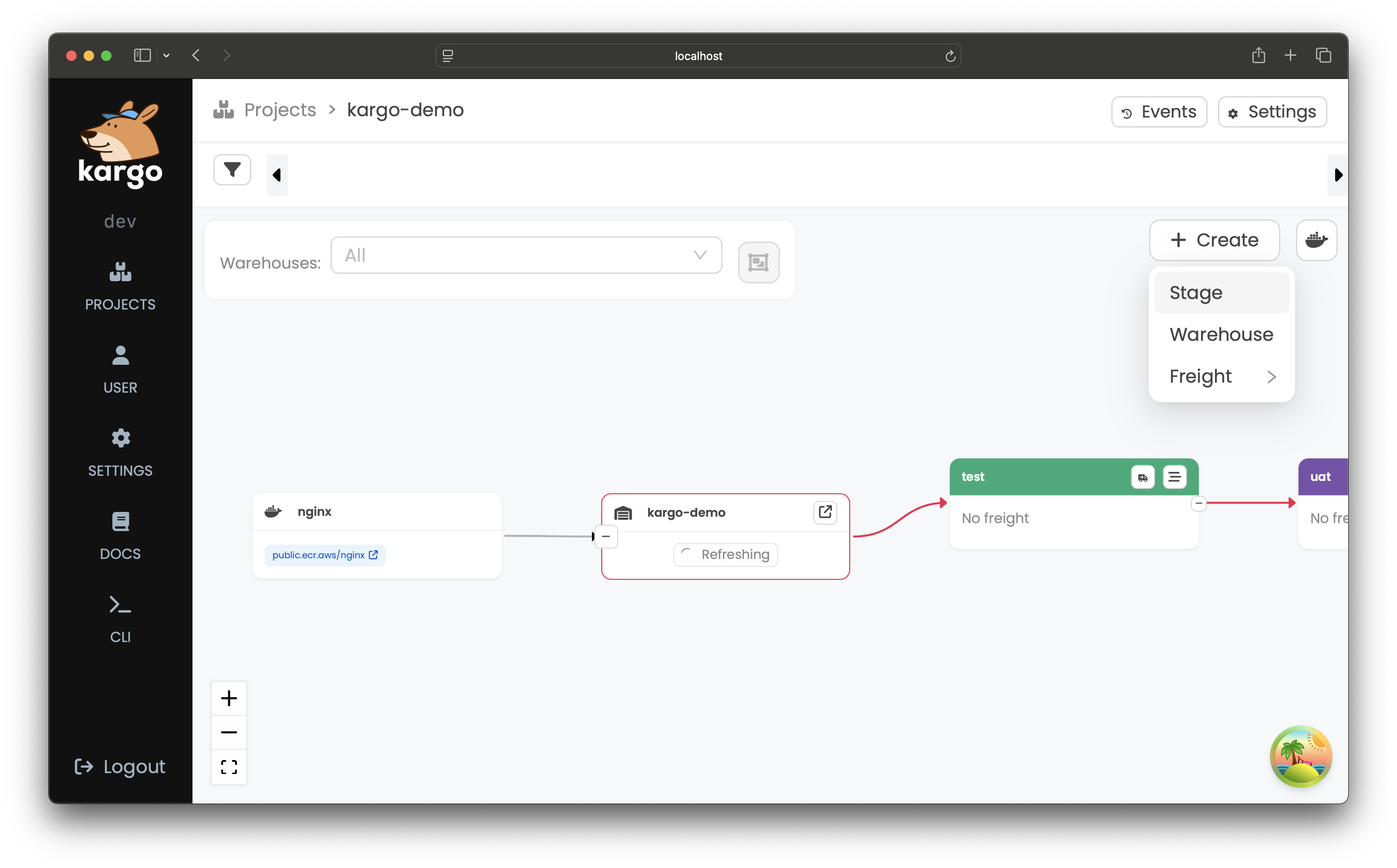
A form will appear to input details for a new
Stage: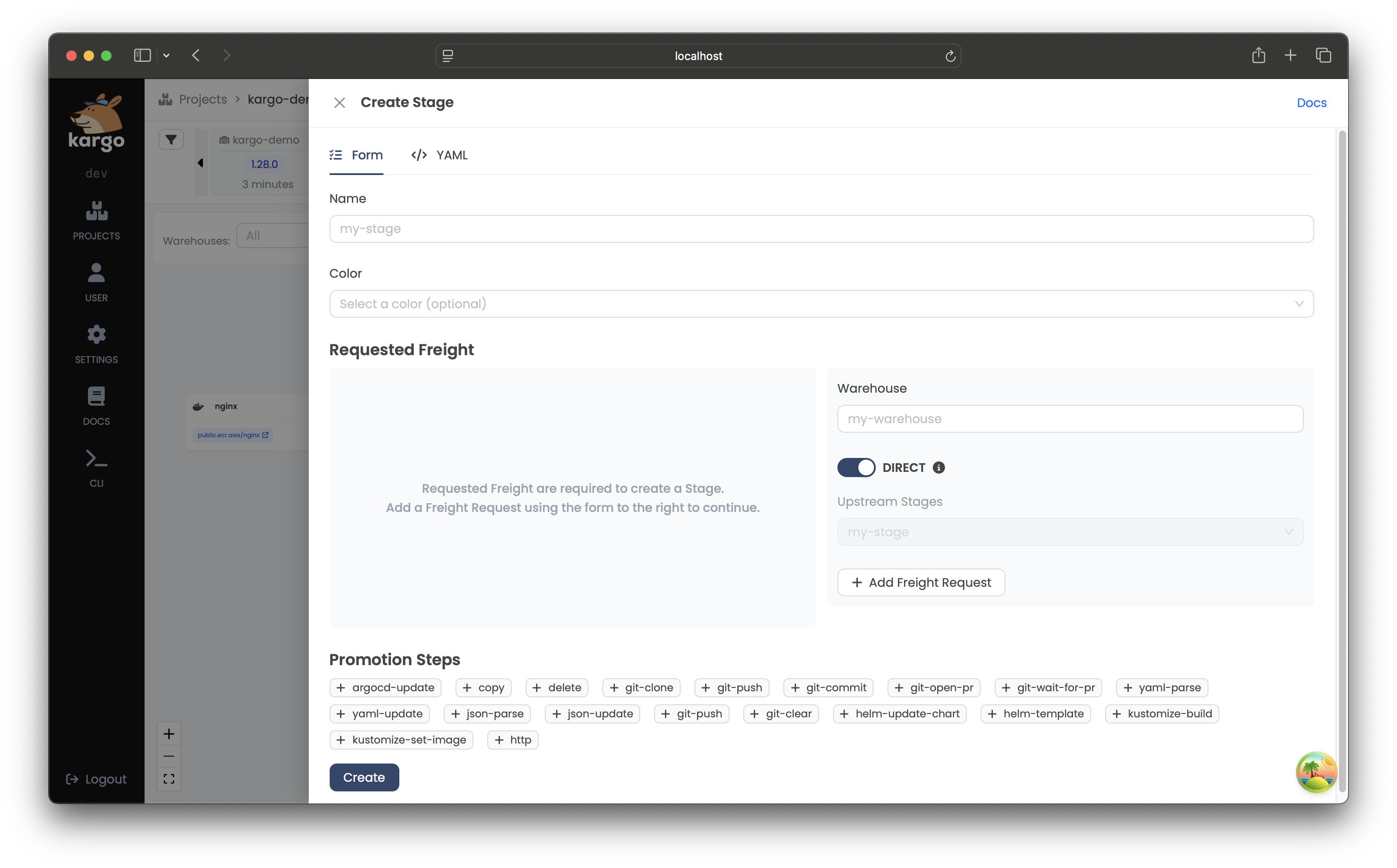
-
Complete the form with the necessary details and submit it.
The new
Stagewill be added to the pipeline, connected to otherStages based on your configuration: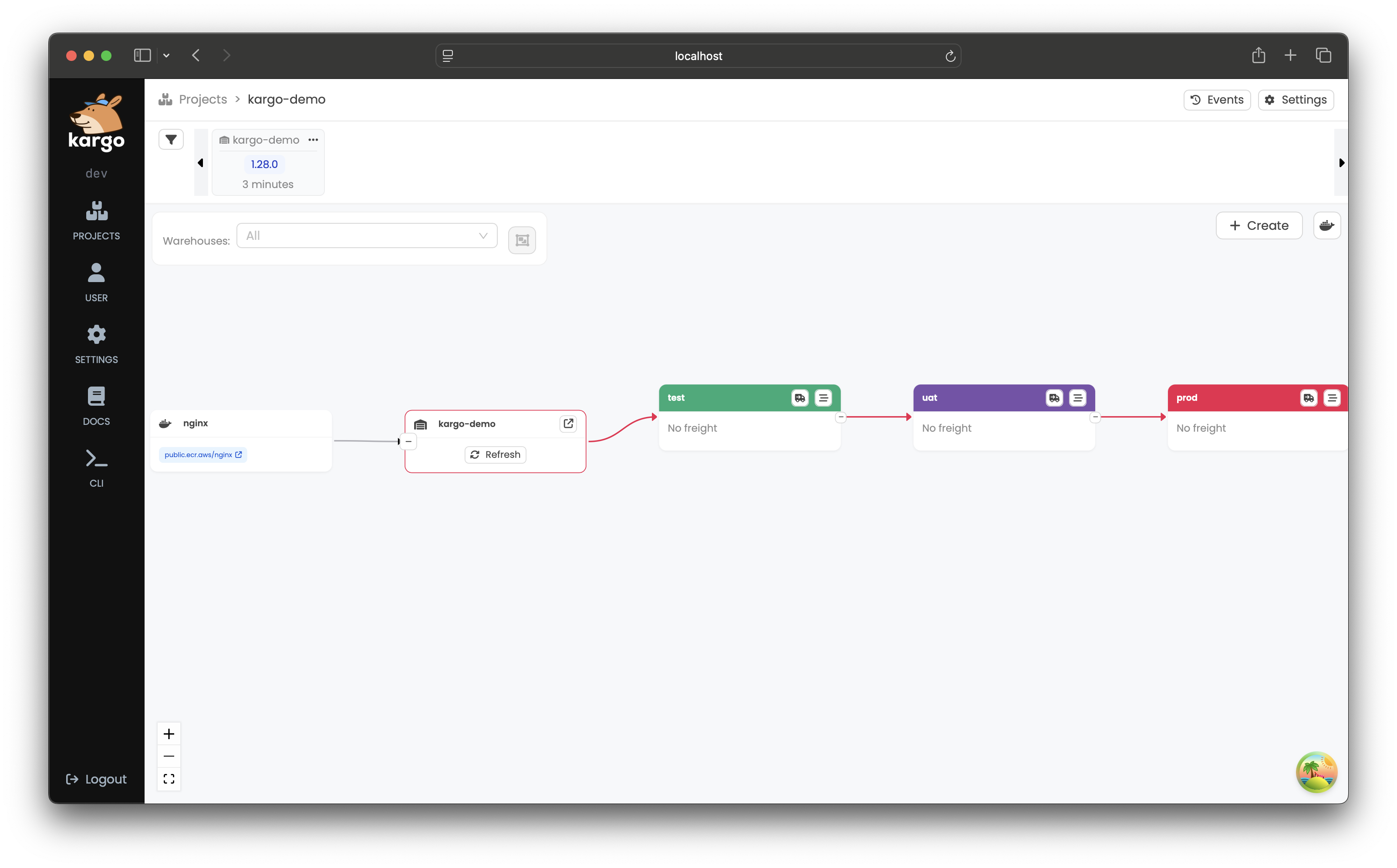
-
Define the
Stagein a YAML file, for example:apiVersion: kargo.akuity.io/v1alpha1kind: Stagemetadata:name: <stage>namespace: <project>spec:### Add your Stage specifications here -
Save the file and run:
kargo create -f <filename> -
Verify the creation by listing
Stages:kargo get stage <stage> --project <project>
Promoting Freight to a Stage
- Using the UI
- Using the CLI
-
To promote
Freightto aStage, click the truck icon in the header of that node and then select Promote:
-
From the timeline at the top of the screen, select the
Freightyou'd like to promote into theStageby clicking Select:
-
Confirm the action by clicking Promote:
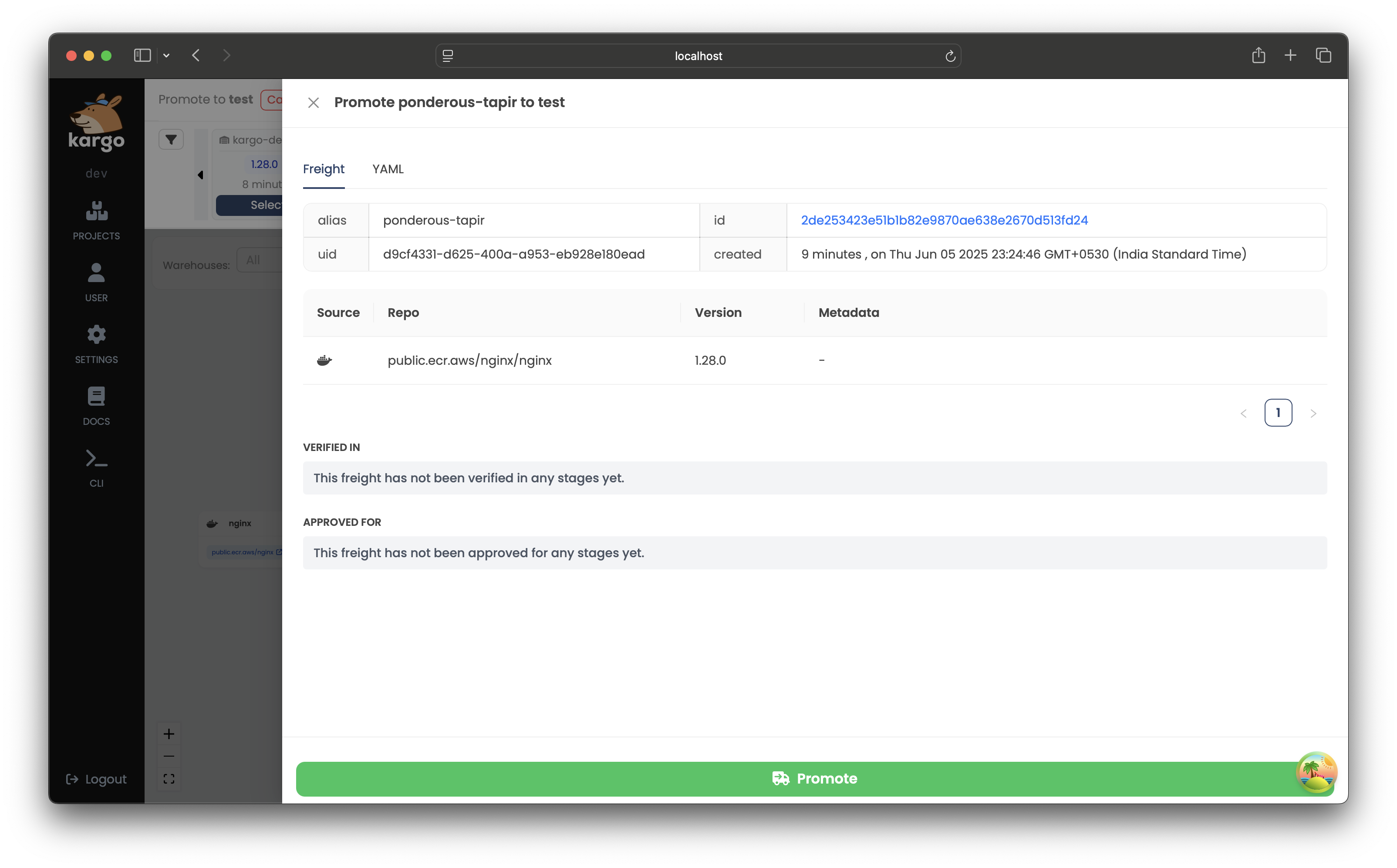
A summary of the
Promotionwill pop up and will be updated in real-time as the steps of the promotion process complete. Once they have all completed, thePromotion's status will change to Succeeded: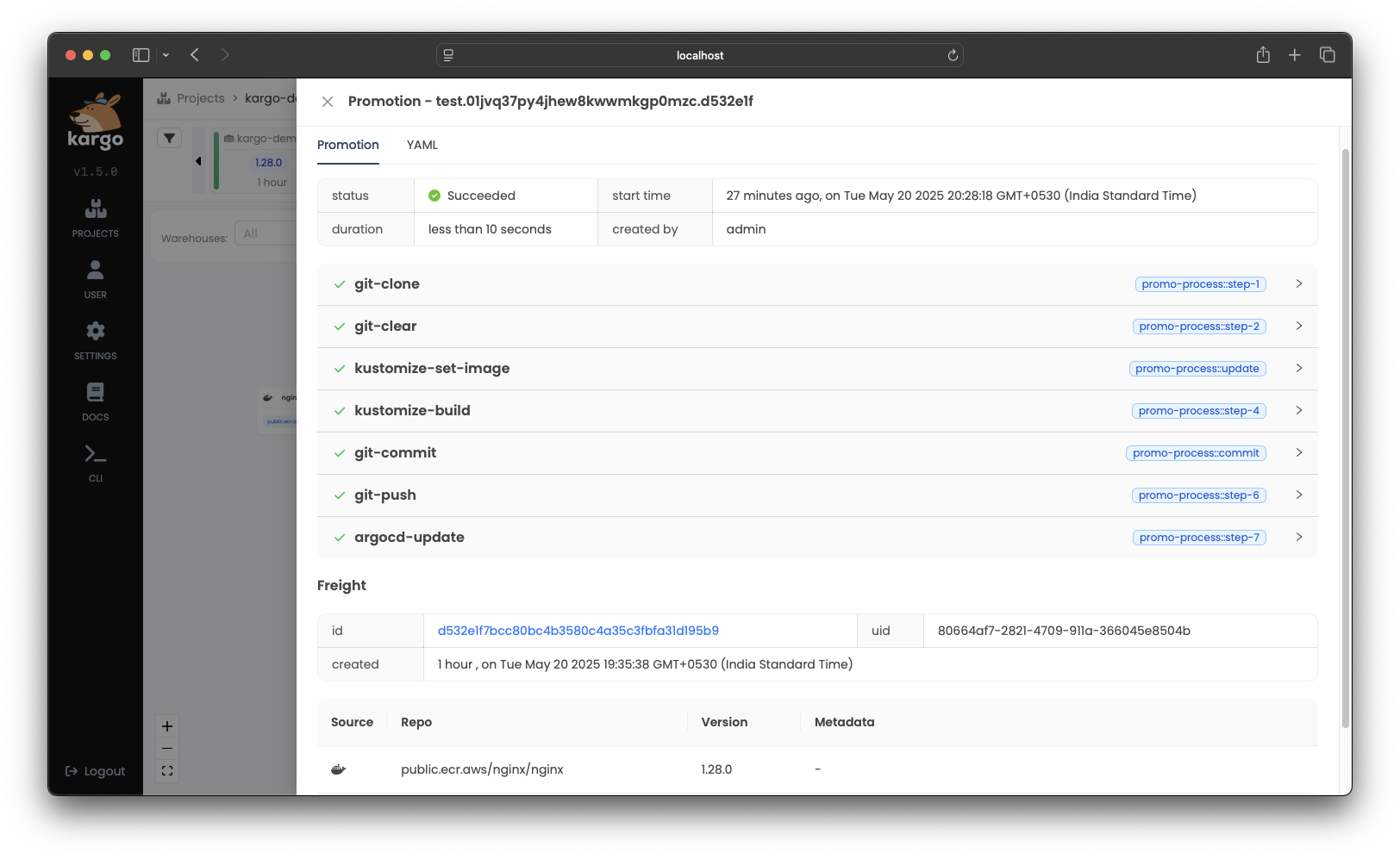
You will also notice the freight timeline has been automatically updated. Every piece of
Freightin the timeline is color-coded to indicate whichStages (if any) are actively using it. You will see the one piece ofFreightcurrently in the timeline is marked with the same color as theStage's node you recently promoted in the pipeline. This indicates this piece ofFreightis currently used by thatStage.
To promote Freight to a Stage using the CLI, run:
kargo promote \
  --project kargo-demo \
  --freight f5f87aa23c9e97f43eb83dd63768ee41f5ba3766 \
  --stage prod
Alternatively, you can reference the Freight you wish to promote using its alias:
kargo promote \
  --project kargo-demo \
  --freight-alias frozen-tauntaun \
  --stage prod
Deleting a Stage
- Using the UI
- Using the CLI
-
Open the
Stageview by clicking the staggered bars icon in the header of theStagenode within the pipeline.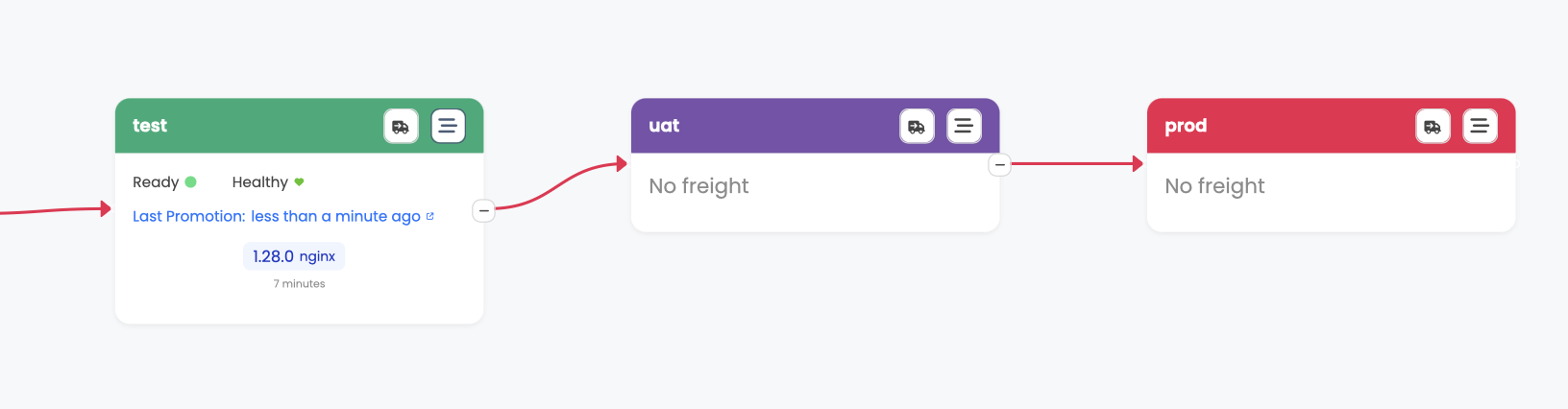
-
In the
Stageview, click Settings, scroll to the bottom, and click Delete.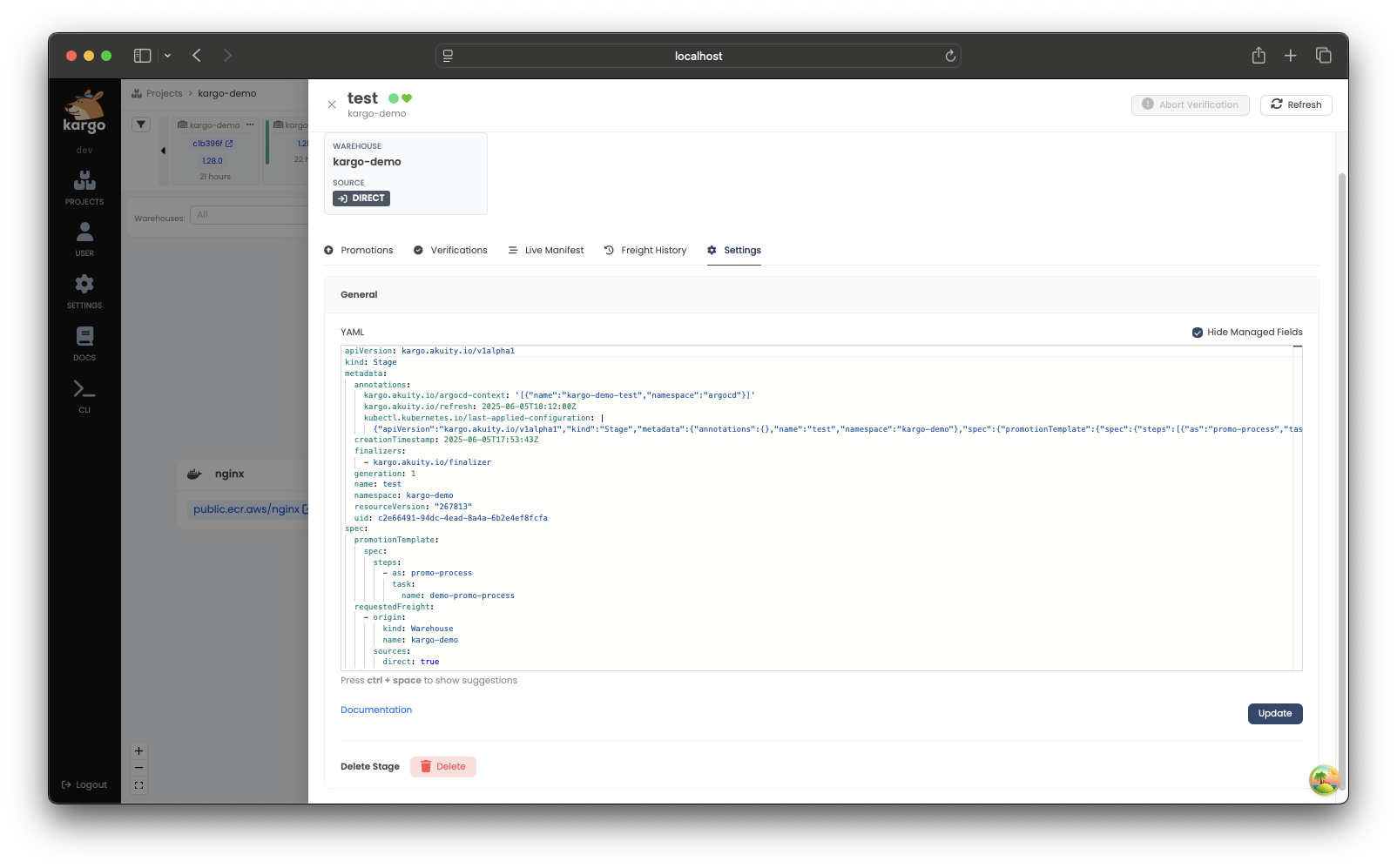
-
A confirmation popup will appear, click Confirm to proceed.
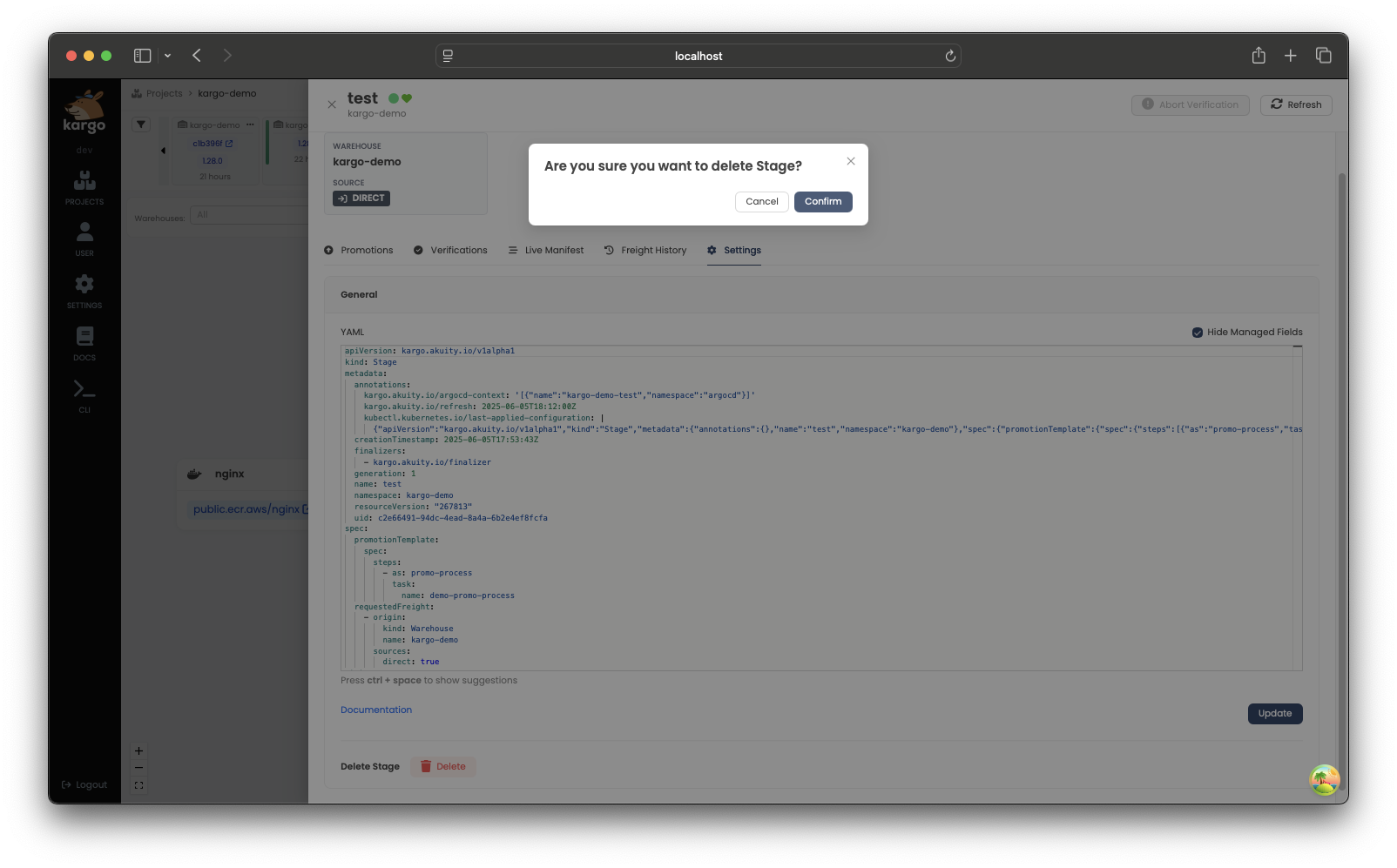
To delete a Stage using the CLI, run:
kargo delete stage <stage> --project <project>
Refreshing a Stage
Refreshing a Stage triggers its reconciliation process, which
includes checking for any newly-completed Promotions, queueing
up the next, pending Promotion, when applicable, and executing
any applicable health check processes.
- Using the UI
- Using the CLI
-
Open the
Stageview by clicking the staggered bars icon in the header of theStagenode that you want to refresh and click Refresh in the top-right corner of the pop-up window: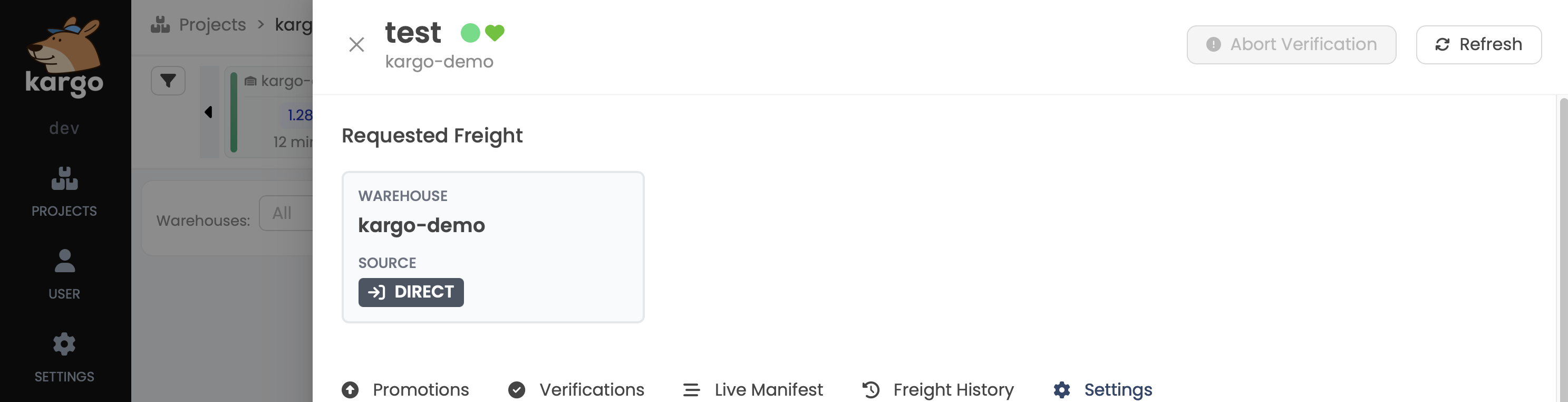
To refresh a Stage, run:
kargo refresh stage <stage> --project <project>
Reverifying a Stage's Current Freight
Verification processes, which run automatically following each successful Promotion,
can also be re-run on-demand. This is useful for re-attempting a failed verification
process or just to validate that applications within the Stage are performing
as desired.
- Using the UI
- Using the CLI
-
Open the
Stageview by clicking the staggered bars icon in the header of theStagenode that you want to reverify and click Reverify at the top of the menu: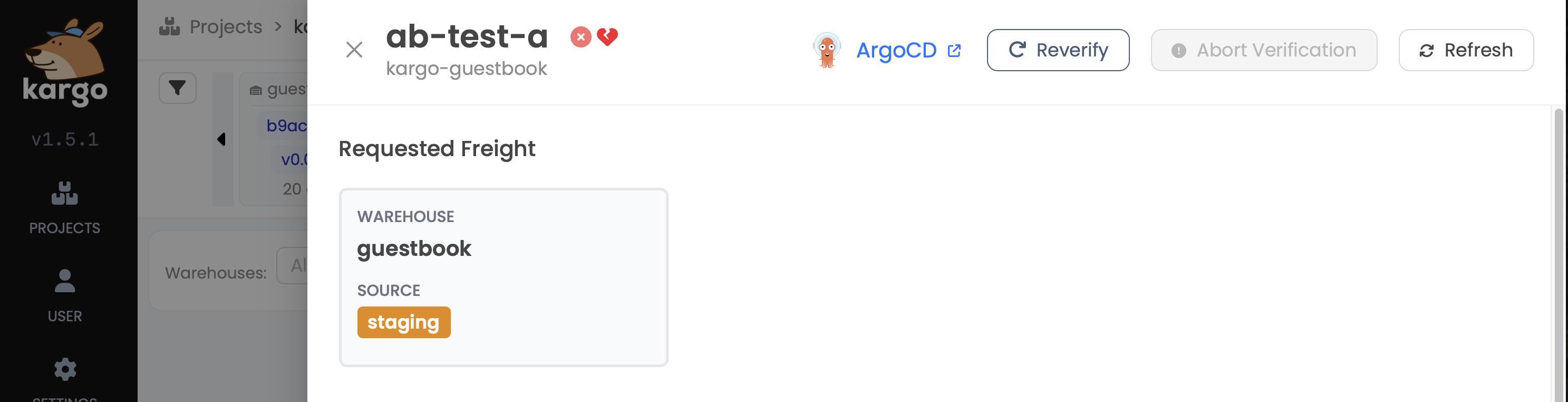 note
noteIf you wish to stop the in-progress verification, you can click Abort Verification.
-
To check the
Stages where theFreighthas been successfully verified, return to theFreighttimeline and select theFreight. VerifiedStagenames will appear under VERIFIED IN: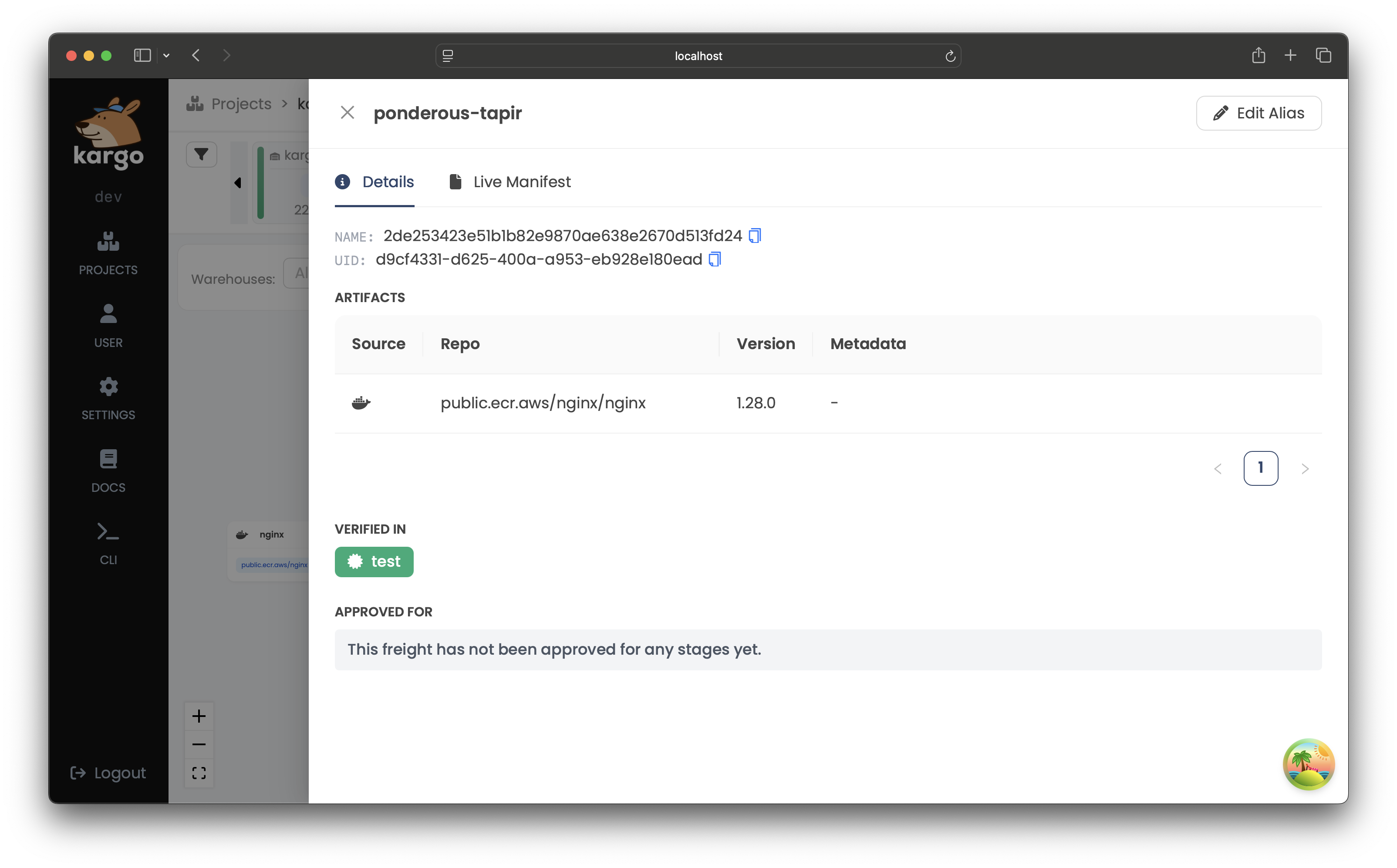
-
To rerun verification using the CLI, run:
kargo verify stage <stage> --project <project>If you want to stop this ongoing verification process, use:
kargo verify stage <stage> --project <project> --abort -
To check the
Stages where theFreighthas been successfully verified, run:kargo get freight \--project <project> \--output jsonpath-as-json={.status}